
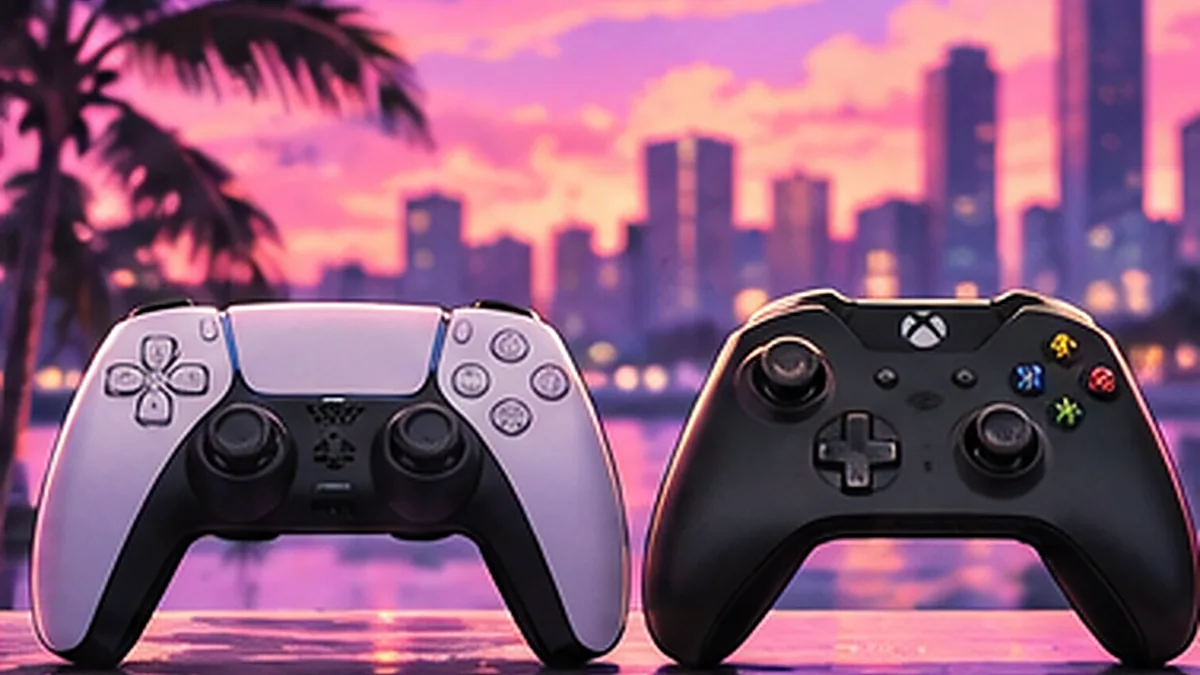
PS5 owners are not the only players who can show GTA VI on a Windows PC and process the picture. Microsoft offers Xbox Remote Play for games installed on a local console, and THS sells a Windows application called Lossless Scaling that can upscale compatible windowed sources and generate additional display frames. A careful setup can improve how the video looks, but it does not make the Xbox simulate GTA VI at 60 FPS or create a native PC edition.
Microsoft documents Xbox Remote Play on Windows. Lossless Scaling features are from the official Steam listing. No Xbox GTA VI stream with PC-side processing has been independently benchmarked for this article.
Requirements: use your Xbox console, not an imaginary PC port
You need GTA VI installed on an Xbox Series X or Series S, a Windows 10/11 PC, a compatible controller and the Microsoft account associated with the console. Microsoft officially lists Remote Play support on Windows 10/11 from version 22H2 and recommends a sufficiently fast internet connection, with 10 Mbps download indicated for Remote Play.
Xbox Remote Play sends the output of a console you own to another device. It differs from Xbox Cloud Gaming, which uses a remote server, and from native PC gaming. For this experiment keep the console and PC on a stable local network if possible.
Step 1: Enable Remote features on your Xbox
On your console open Settings and navigate to Devices & connections > Remote features. Enable the remote features option, and use any test or setup check the console presents. Sign in with the same Xbox account you will use on Windows, and make sure GTA VI can start normally on the Series X|S.
Keep the console and controller firmware up to date. If you plan to wake the machine remotely, use a suitable supported power mode. Menu wording may differ between console updates; Microsoft's linked Remote Play support is the authoritative place for current paths.
Step 2: Start the official Xbox Remote Play session on Windows
Download the Xbox PC app through Microsoft's official Xbox website, sign in, and open its Remote Play or console connection interface. Choose the available Series X|S you own. You can also follow the official Xbox Remote Play webpage to a browser-supported route if the app's layout changes. Connect a supported Xbox controller to Windows and verify that it works inside the streamed GTA VI session.
Before installing any enhancer, drive and pan the camera for several minutes and watch the ordinary stream. If the console is not listed, check account identity, Remote features, network and any updates. Do not install an unofficial 'GTA 6 Xbox PC edition' to work around a connection problem.
Step 3: Add Lossless Scaling only after Remote Play works
Lossless Scaling is available directly from its developer THS on Steam. It supports compatible windowed or borderless fullscreen apps. Launch the official Xbox stream in a suitable window, start Lossless Scaling and choose that window as the source. Begin with scaling or filtering only and verify that the controller and sound continue working.
If this baseline is stable, LSFG in Fixed 2× mode is a possible experiment for a 60 Hz monitor. The important unknown is whether the incoming stream contains only about 30 unique game images per second inside its 60 Hz video. Interpolation that treats repeated copies as independent frames can cause judder or additional delay. If that happens, disable frame generation and retain only picture scaling or the original stream.
Step 4: Compare latency and return to normal whenever needed
Drive along the same route with the effect off and on. Watch for blurry road signs, strange edges around traffic and delayed steering. A generated-frame counter is not the same as GTA VI's internal rendering frame rate. Processing can make the display look more fluid while leaving the original console input updates unchanged.
Veyra's project documentation mentions experimental Xbox streaming, but it is not a verified substitute for Microsoft's official account and streaming path. Close the third-party utility and end the Remote Play session if problems appear. There is no need to edit the game, install a trainer or restore any modified console files.